
Cloud layer
Messages sent in regular Telegram chats are encrypted between your device and Telegram's data centres using the MTProto protocol. Only your active sessions can decrypt the content.
This page explains how Telegram actually protects your data, which knobs you should turn on the first day, and how to react when your SIM changes, you lose a device or you spot a suspicious login attempt.
Three layers
Telegram uses different encryption layers depending on the type of conversation. Understanding the three layers below makes it easy to decide when to use Secret Chats and when regular cloud chats are enough.
Messages sent in regular Telegram chats are encrypted between your device and Telegram's data centres using the MTProto protocol. Only your active sessions can decrypt the content.
Secret Chats bypass the cloud entirely and use client-to-client encryption. Nothing is stored on Telegram servers, nothing forwards, screenshots trigger a warning, and messages can auto-destruct.
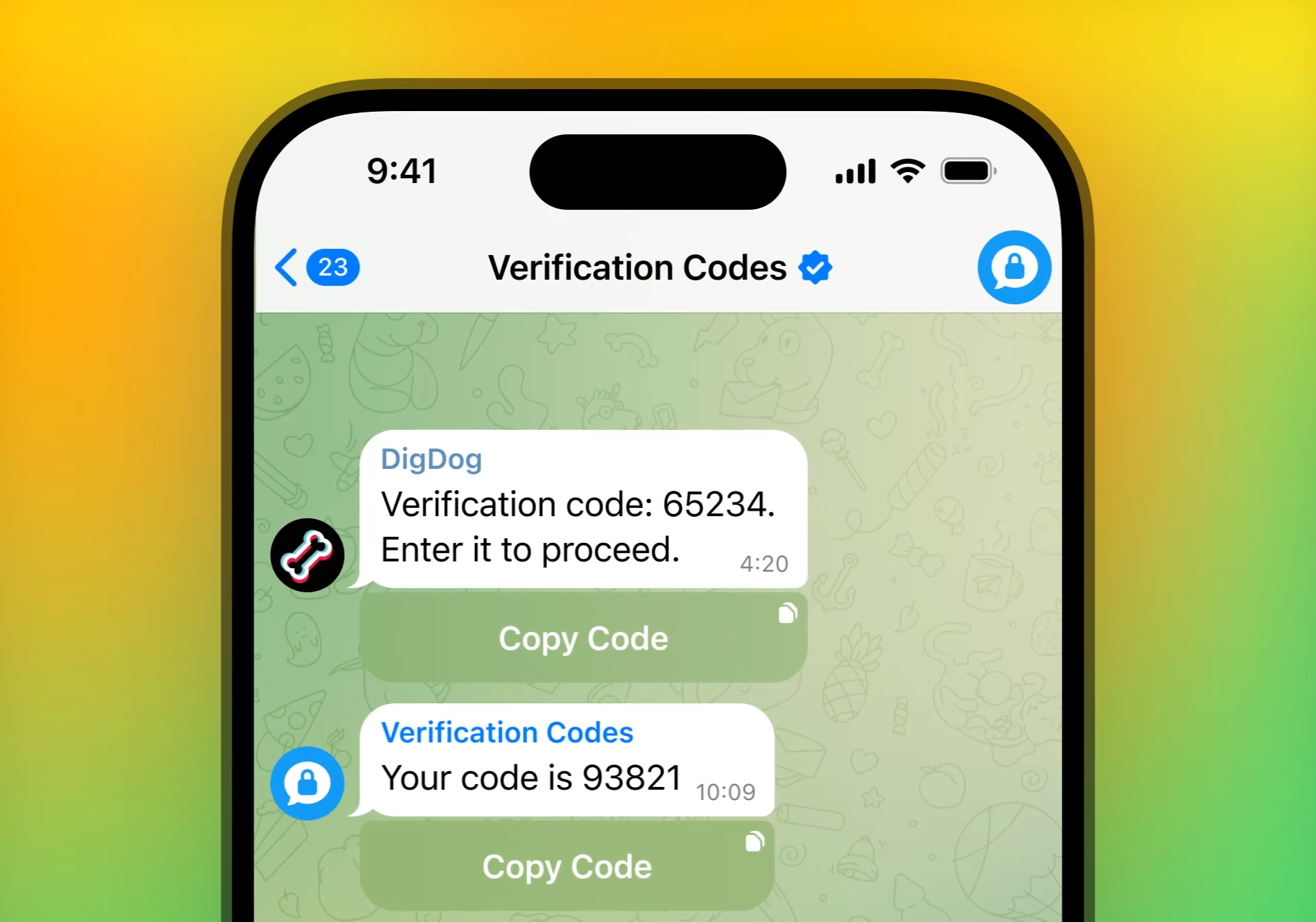
Two-step verification, biometric locks, active session controls and recovery emails work together to keep an intruder out even if your SIM card gets swapped.
MTProto in plain English
MTProto 2.0 encrypts your traffic between the Telegram app and Telegram's data centres. It uses AES-256, RSA-2048 and Diffie–Hellman key exchange, and is engineered to keep working on flaky 3G/4G connections and captive Wi-Fi networks.
Security checklist
Six settings that stop 90% of realistic account-takeover attempts. Enable them once and Telegram becomes noticeably harder to attack.
Settings → Privacy and Security → Two-Step Verification. Set a memorable password (not the SMS code!) and add a recovery email so no one can lock you out.
Lock the Telegram app itself with a passcode plus Face ID, Touch ID or fingerprint. If your phone is lost, nobody can read your messages by simply unlocking the device.
Under Settings → Devices, sign out from any browser or laptop you no longer recognise. You can end every desktop session with one tap.
Secret Chats are end-to-end encrypted, stored only on the two devices involved and can auto-destruct. Start one from any private chat when it matters.
Under Privacy and Security, switch phone number visibility to Nobody or My Contacts. Add exceptions if you still want select colleagues to reach you by number.
Photos and videos can auto-erase after being viewed, either globally in Secret Chats or per-media in regular chats. Great for one-off shots you don't want stored forever.
Recovery drills
Even the best setup can face a lost phone, a stolen SIM or a suspicious login. Telegram gives you tools to react in seconds.
Ready to secure your account?